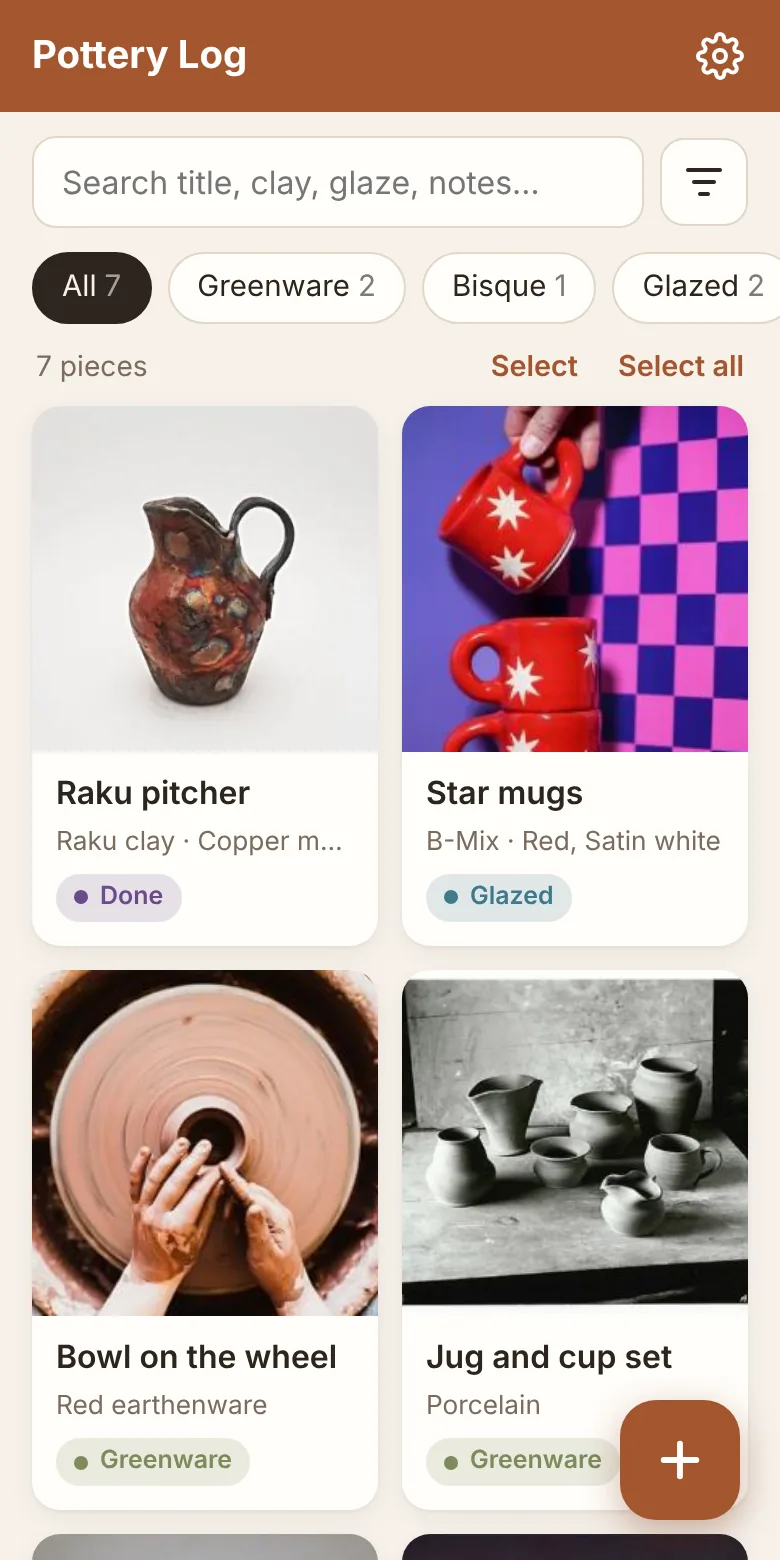
Keep track of every piece you make, from wet greenware to the finished pot, with photos, clay, glaze and firing notes. Your log lives on your device and in your own Google Drive.
Pottery Log is a simple, mobile-friendly notebook for potters. Snap a photo when a piece comes off the wheel, then add to its record as it dries, gets bisque fired, glazed and finished. Months later you can look back and see exactly which clay, glaze and cone made that mug you love.
Every stage, tracked
Move each piece through Greenware, Bisque, Glazed and Done (or Archived), with the date for each step, and filter your log by stage.
Photos of each piece
Take photos with your camera or add them from your gallery. Swipe through them on a phone, and pick which one shows in your list.
Clay, glaze and firing notes
Record clay bodies, wheel or hand-built, glazes, and the firing type and cone for both bisque and glaze firings, plus your own notes.
Search, filter and your own fields
Search everything, filter by clay, glaze, cone or any field, and add your own fields such as kiln, weight or who a piece is for.
Backs up to your Google Drive
Connect once and your pieces sync to a folder in your own Drive and to your other devices. Each piece is a readable folder of photos and notes.
Works offline, installs like an app
Add it to your home screen and it opens full screen, even with no signal in the studio. Changes sync when you're back online.
Sell with Square
Give a piece a price and charge for it with the Square Point of Sale app. When the sale is done, the piece is marked sold with a link to the sale.
Free, with no ads
No account to create, no subscription and no ads. Just open it and start logging.
Your pieces stay yours
Your pieces and photos are saved in your browser on your own device. If you connect Google Drive, they're also copied to a folder in your Drive. Pottery Log has no database of its own, and Ridge Valley never sees your pieces or photos.
When you connect Drive, the app asks only for permission to see the files it creates (Google's drive.file access), so it can't read anything else in your Drive. You can disconnect at any time.
The screenshots show the app with sample pieces. The pottery photos in them are by other photographers, shared under open licences; see photo credits.
1Open it and add it to your home screen
Pottery Log runs in your web browser, so there's nothing to download from an app store. Open potterylog.ridgevalley.io on your phone or computer and you can start logging straight away.
For the best experience on a phone, add it to your home screen. It then opens full screen like any other app, works without a connection, and your browser is much less likely to clear its saved data.
Android (Chrome): tap ⋮, then Add to Home screen or Install app.
iPhone or iPad (Safari): tap the Share button, then Add to Home Screen.
Computer (Chrome or Edge): click the install icon at the right of the address bar.
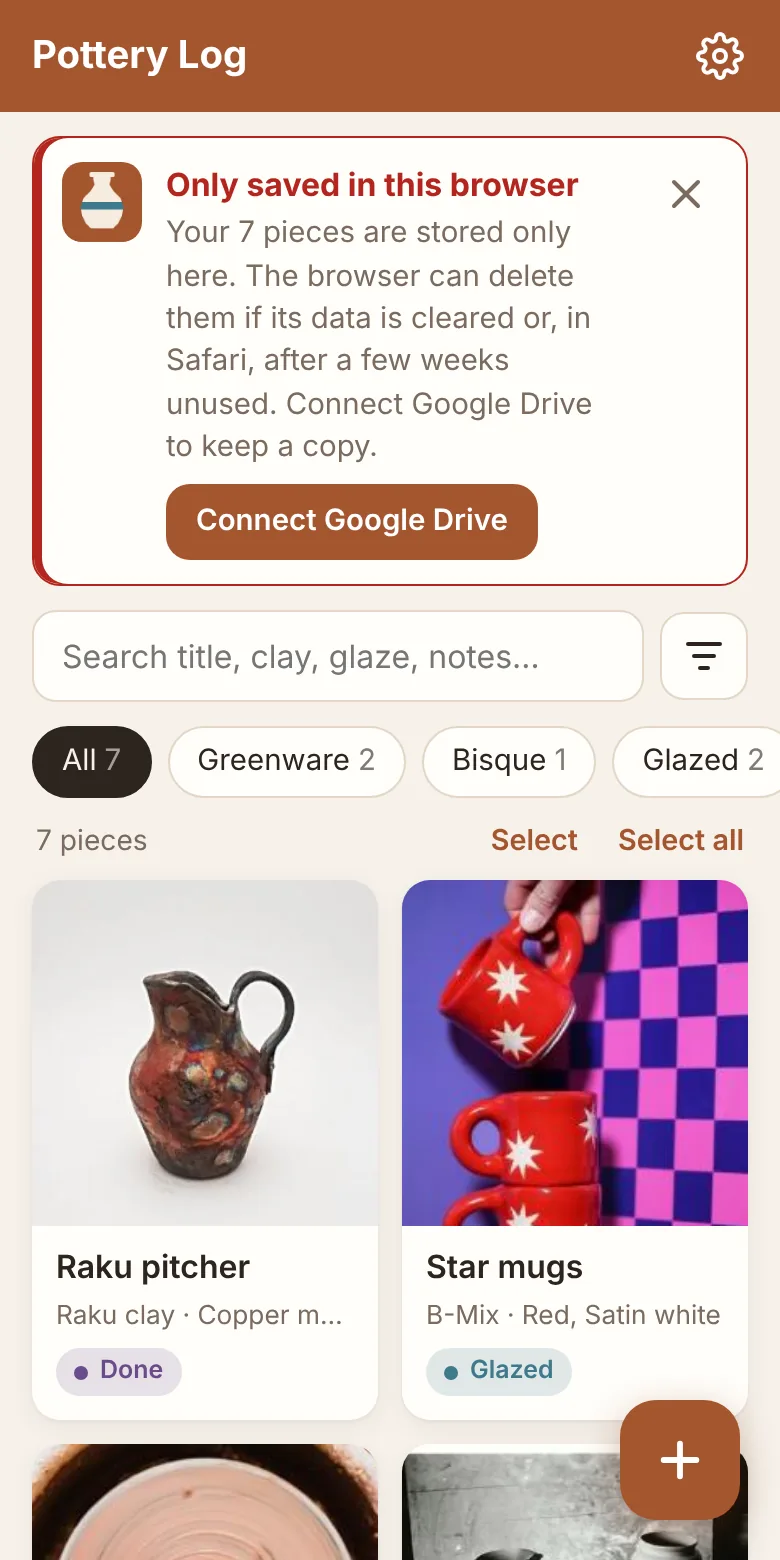
Until you connect Google Drive, the home screen shows an Only saved in this browser reminder. That's your cue to set up a backup (see step 6). You can close it, and it stays hidden for a week.
The reminder to connect Google Drive
2Log your first piece
Tap the round + button at the bottom right of the home screen.
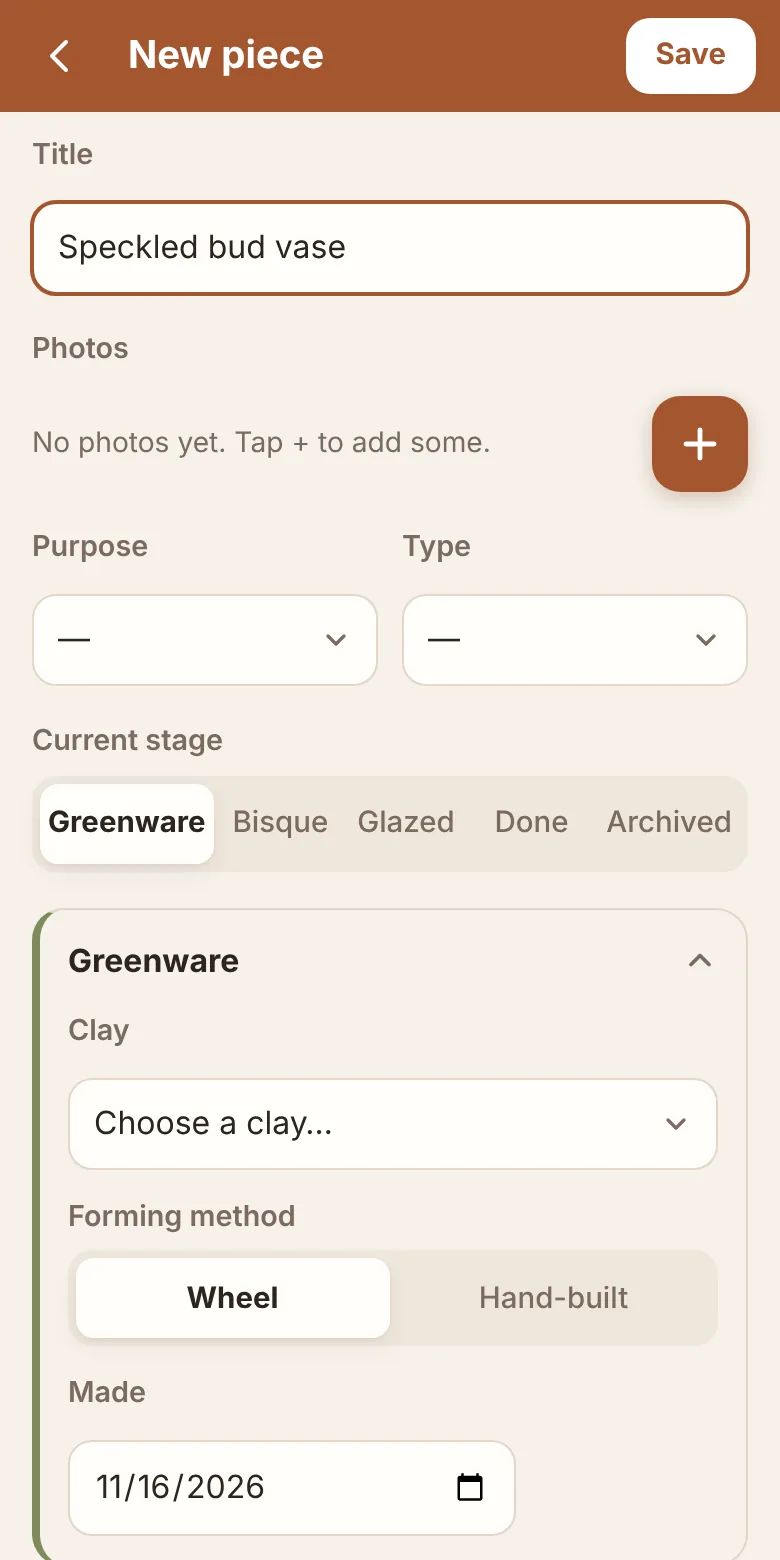
Give the piece a title, such as "Tall speckled mug". It's the only thing you have to fill in.
Tap + next to Photos to add pictures. On a phone you can also take one with the camera.
Optionally choose a Purpose (Keep, Give, Sell) and a Type (Bowl, Vase, Mug, or one you type).
In the Greenware section, pick the clay, whether it was made on the wheel or hand-built, and the date it was made. Today's date is filled in for you.
Add any notes: dimensions, how it was made, what to try next time.
Tap Save at the top right.
If you leave the form without saving, the app asks before throwing your changes away.
Adding a new piece
3Move a piece through its stages
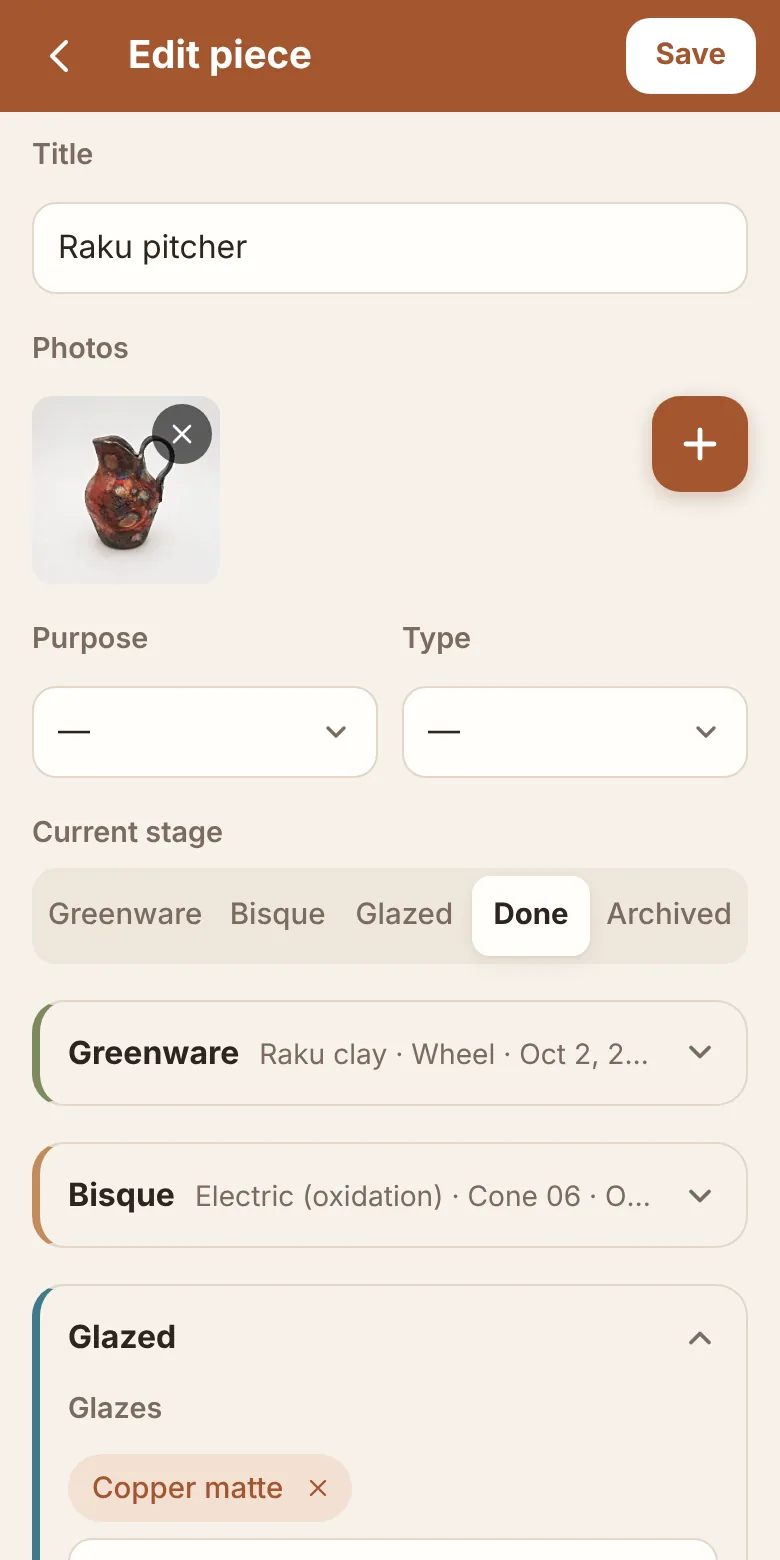
Each piece has a Current stage: Greenware, Bisque, Glazed, Done or Archived. When a piece moves on, open it, tap the pencil to edit, and pick the new stage. That stage's section opens so you can fill it in, and the others fold away with a one-line summary.
Bisque: firing type (electric, gas, raku, wood, soda and more), cone, and the date it was bisque fired.
Glazed: the glazes you used, an optional glazing process, the glaze firing type and cone, and the date.
Done: price, whether it's sold, and the date it was finished.
Archived: for pieces you want to keep a record of but no longer see in your active work.
A piece can have several clay bodies and several glazes. Choose + New glaze… or + New clay body… in a drop-down to add one that isn't listed yet; it's remembered for next time.
Editing a piece, with one stage open
4Look at a piece
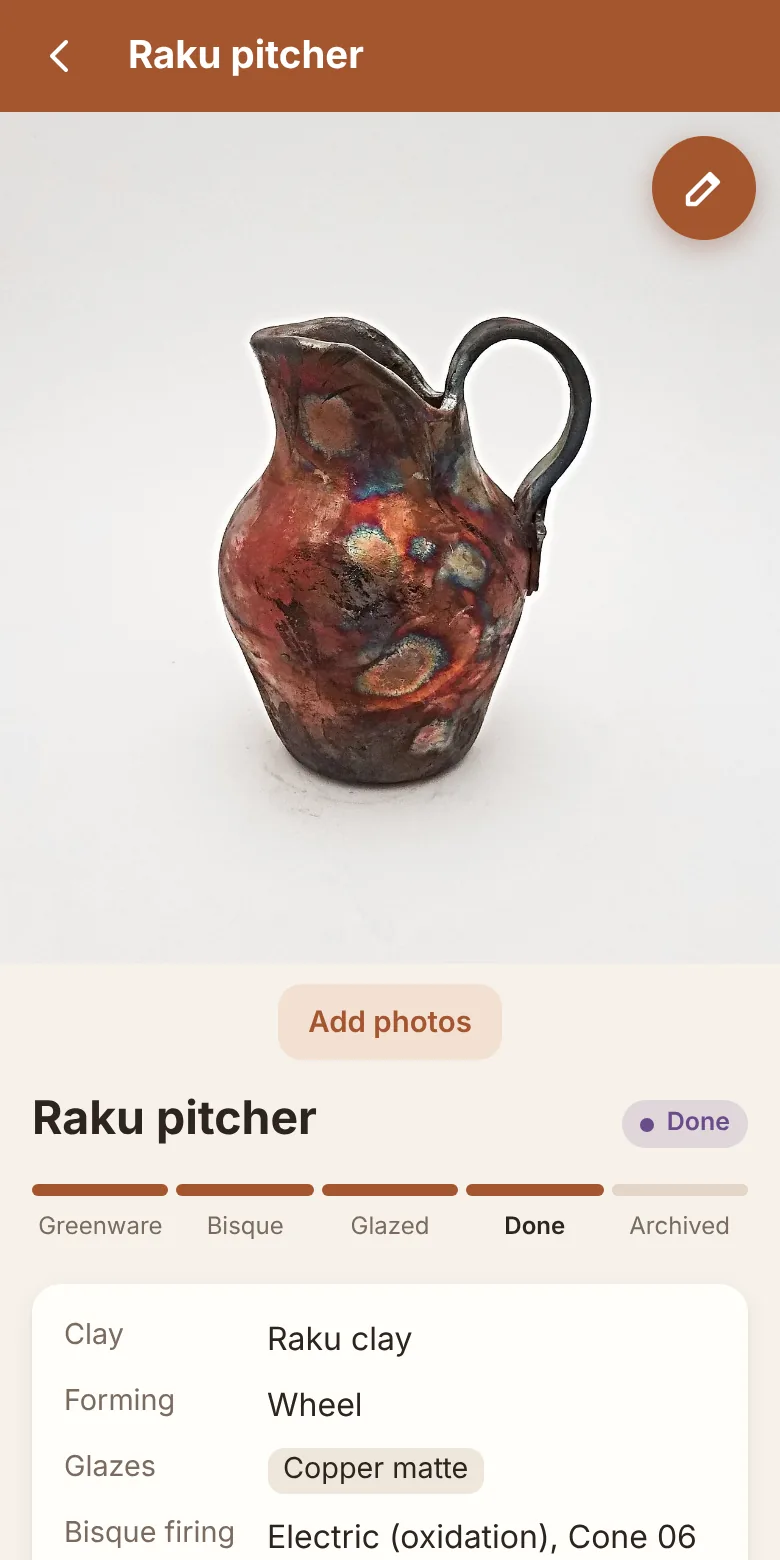
Tap any piece on the home screen to see everything about it: its photos, a progress bar showing its stage, the clay, forming method, glazes, firings, dates and notes.
Swipe the photos on a phone, or use the arrows on a computer.
Tap Add photos under the photos to add more without opening the edit form.
Tap the pencil to edit, or Delete at the bottom to remove the piece.
On the edit form you can tap a photo to make it the piece's thumbnail in your list. Otherwise the newest photo is used.
A piece's details
5Search and filter your log
The home screen shows all your pieces, newest first. To find one:
Type in the search box. It looks through titles, clays, glazes, firings, notes and your own fields.
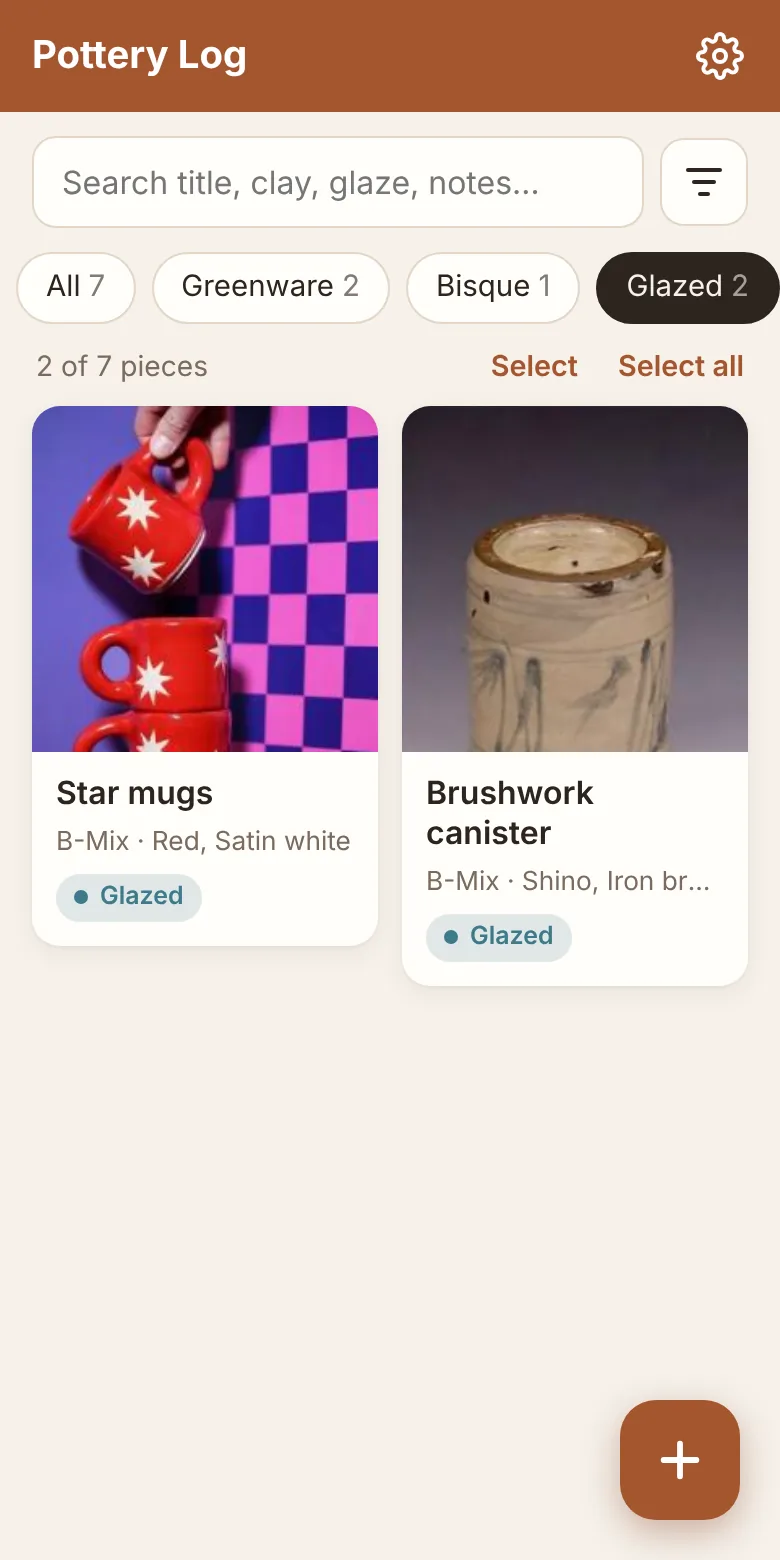
Tap a stage under the search box (Greenware, Bisque, Glazed…) to see only pieces at that stage. Each shows how many pieces it has.
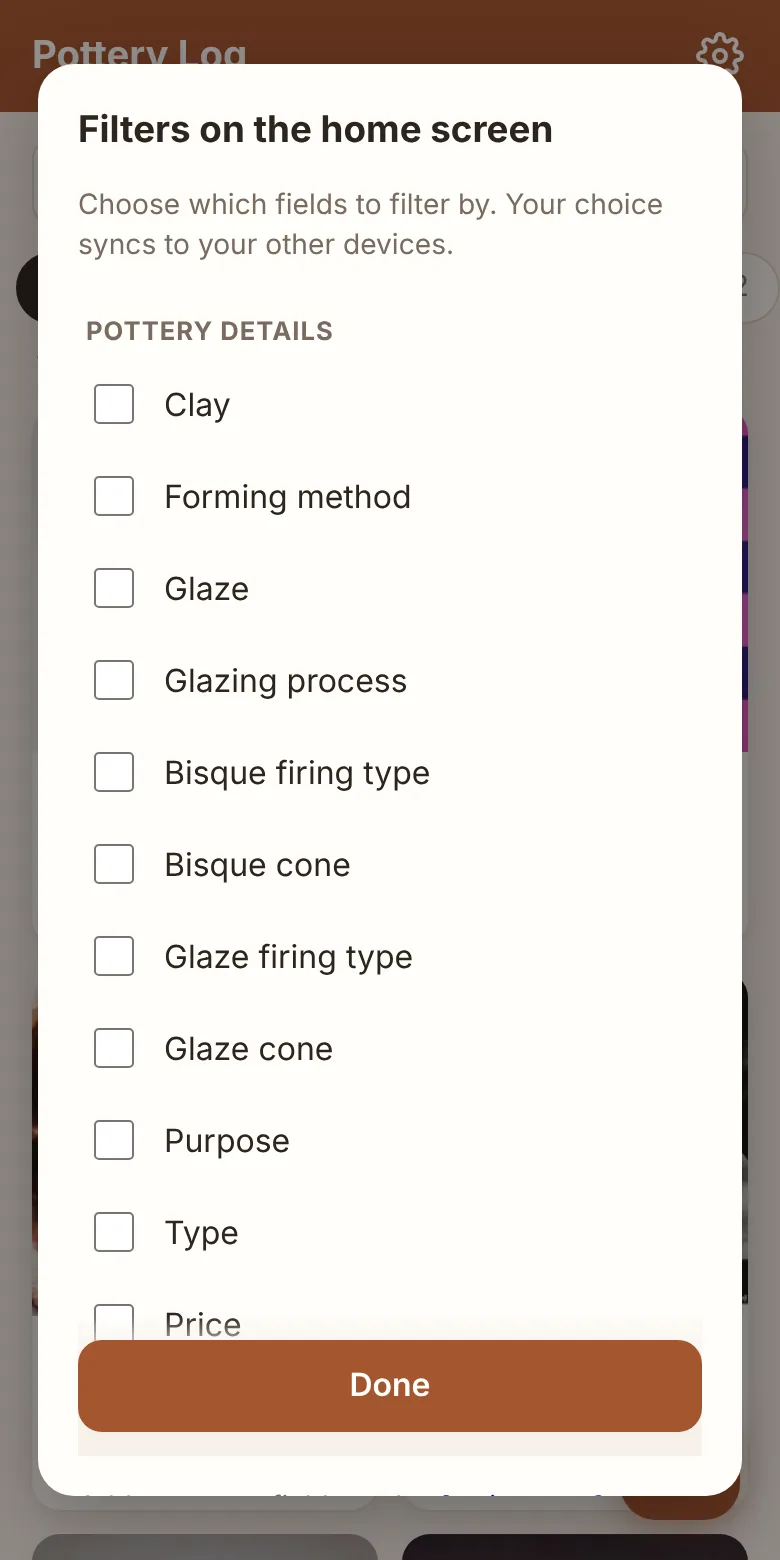
Tap the filter button next to search and tick the fields you want to filter by, such as clay, glaze or glaze cone. Each one becomes a drop-down on the home screen listing the values your pieces actually use.
Showing only glazed piecesChoosing which filters to show
6Back up to Google Drive
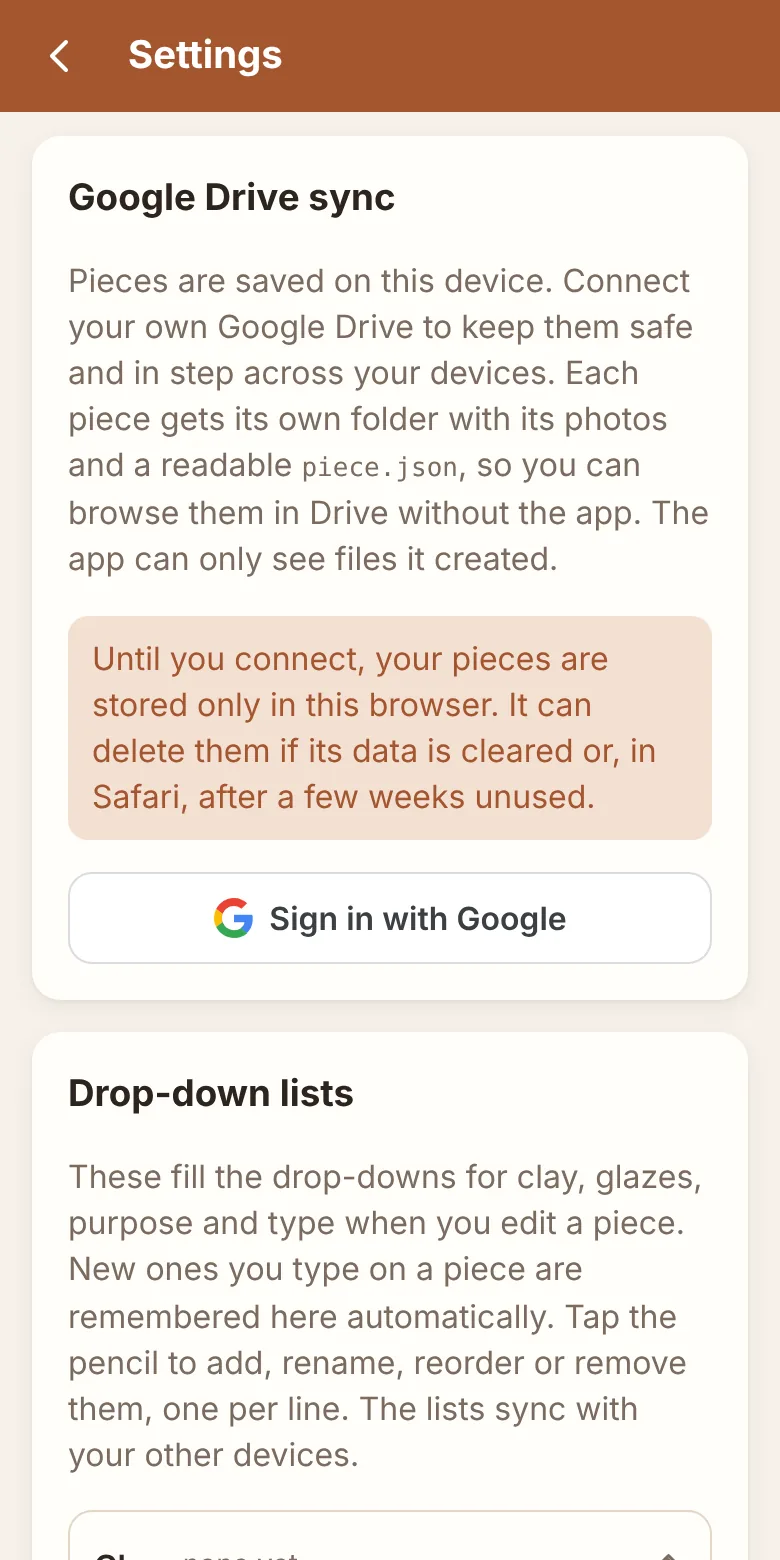
Pottery Log works fully without an account, but anything saved only in a browser can be lost if the browser's data is cleared. Connecting your Google Drive keeps a safe copy and lets you use the same log on your phone and computer.
Tap the gear icon at the top right to open Settings (or tap Connect Google Drive on the home screen).
Tap Sign in with Google and allow access to "the specific Google Drive files you use with this app". You stay signed in from then on.
Choose where your pieces go: New folder creates a "Pottery Log" folder in your Drive, or Choose folder lets you pick an existing one.
That's it. The app syncs on its own when it opens, after every save, and when your connection comes back. The gear icon spins while it syncs and shows a dot when there are changes not yet in Drive. You can also tap Sync now in Settings.
On a new phone or computer, open Pottery Log, sign in, and pick the same folder. Your existing Pottery Log folders are listed as buttons, so it's one tap. Your pieces appear straight away and their photos load as you open them.
Everything in the folder is readable without the app: one folder per piece, with its photos and a piece.json file holding its details.
Glazes and clay bodies are picked from drop-down lists that grow as you use them. To tidy them up, open Settings → Drop-down lists and tap the pencil to add, rename, reorder or remove names, one per line. Removing a name only takes it out of the list; pieces that use it keep it.
A glazing process is a set of glazes plus notes on how you apply them, for combinations you use again and again:
On a piece with two or more glazes, tap Save as a glazing process, then give it a name and notes.
On another piece, tap Choose a glazing process… to apply it. Its glazes are set for you.
Manage them under Settings → Glazing processes. Changing a process's glazes updates every piece that uses it, after telling you how many that is.
8Add your own fields
Every piece already has Purpose, Type, Price and Sold. To track something else, such as the kiln, weight or who a piece is for, go to Settings → Custom fields, type a name and pick a type: Text, Number, Currency, Date, Yes / no, a Choice list, or a Link.
New fields appear on every piece's edit form and details, can be used as filters on the home screen, and sync with your other devices. Drag a field by its dots to change the order.
Text fields remember what you've typed and offer it as a drop-down next time, so you don't have to type "Studio kiln" twice.
9Edit or sell several pieces at once
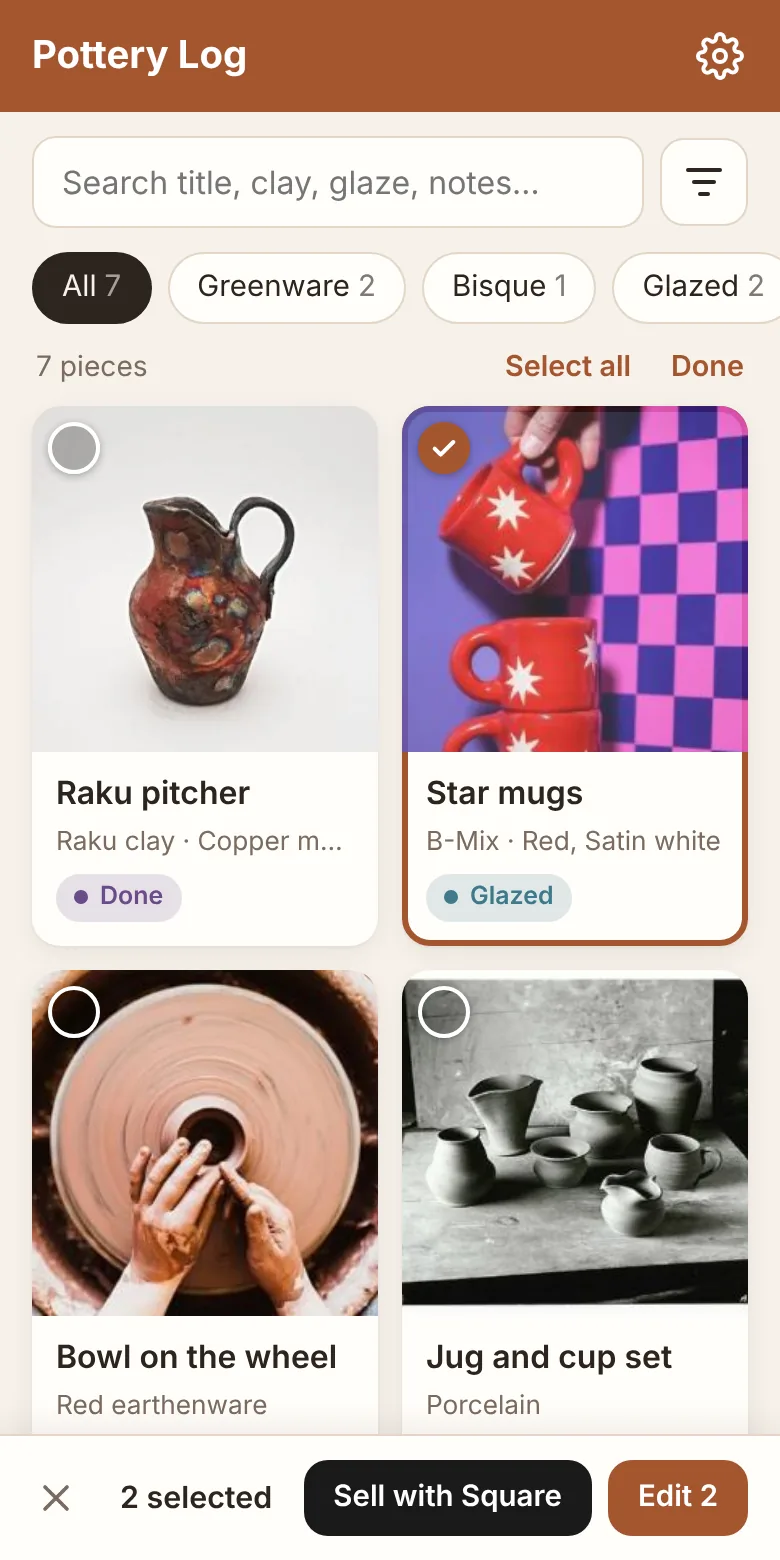
Press and hold a piece, or tap Select above the list, then tap the pieces you want. Select all picks every piece the current search and filters show.
Edit opens one form for all of them. Only the fields you change are saved, so it's quick to, say, move a whole kiln load to Bisque with the same firing date.
Sell with Square charges the selected pieces as one sale, adding up their prices.
Selling with Square: a piece with a price that isn't sold has a Charge with Square button. On a phone or tablet it opens the Square Point of Sale app with the price filled in. When the sale is done, Pottery Log marks the piece sold and links to the sale. You'll need the free Square Point of Sale app, signed in to your Square account. If you don't sell with Square, turn it off under Settings → Square.
Two pieces selected
Questions and tips
I deleted a piece by mistake. Can I get it back?
Yes, if you're quick: a message with Undo appears at the bottom of the screen for a few seconds after you delete. If the piece was already in Google Drive, its folder goes to Drive's trash, where it stays for 30 days.
Does it work without an internet connection?
Yes. Everything you log is saved on your device first. A small note under the title bar tells you when you're offline, and the app syncs with Google Drive by itself as soon as you're back online.
What if I change the same piece on two devices?
Pottery Log combines the changes field by field. If you edit the notes on your phone and mark it sold on your computer, both changes are kept. If the same field was changed differently on both, the most recent change wins and the app tells you which fields were affected.
Why does it say "Reconnect Google Drive"?
Google ends the connection if you remove the app's access in your Google account, or if it goes unused for six months. Your pieces stay safe on the device; tap Reconnect and everything you changed in the meantime syncs.
Will my photos fill up my phone?
Photos are resized when you add them, and under Settings → On this device you can set how much room they may take (500 MB by default). Once photos are safely in Google Drive, the app can remove the full-size copies of pieces you haven't opened in a while; they download again when you open the piece.
How do I stop syncing with Google Drive?
Open Settings and tap Disconnect. Your files in Drive and your pieces on the device are kept; the app just stops syncing and forgets its access.
Pottery Log is free, with no ads and no subscriptions. If it's been useful in your studio, a donation of any size helps keep it running and growing.
The pottery photos in the screenshots on this page are used under their open licences. Screenshots that include a CC BY-SA photo are shared under the same licence.